SFM Compile: Fix Errors & Compile Models Fast
What Does SFM Compile Mean?
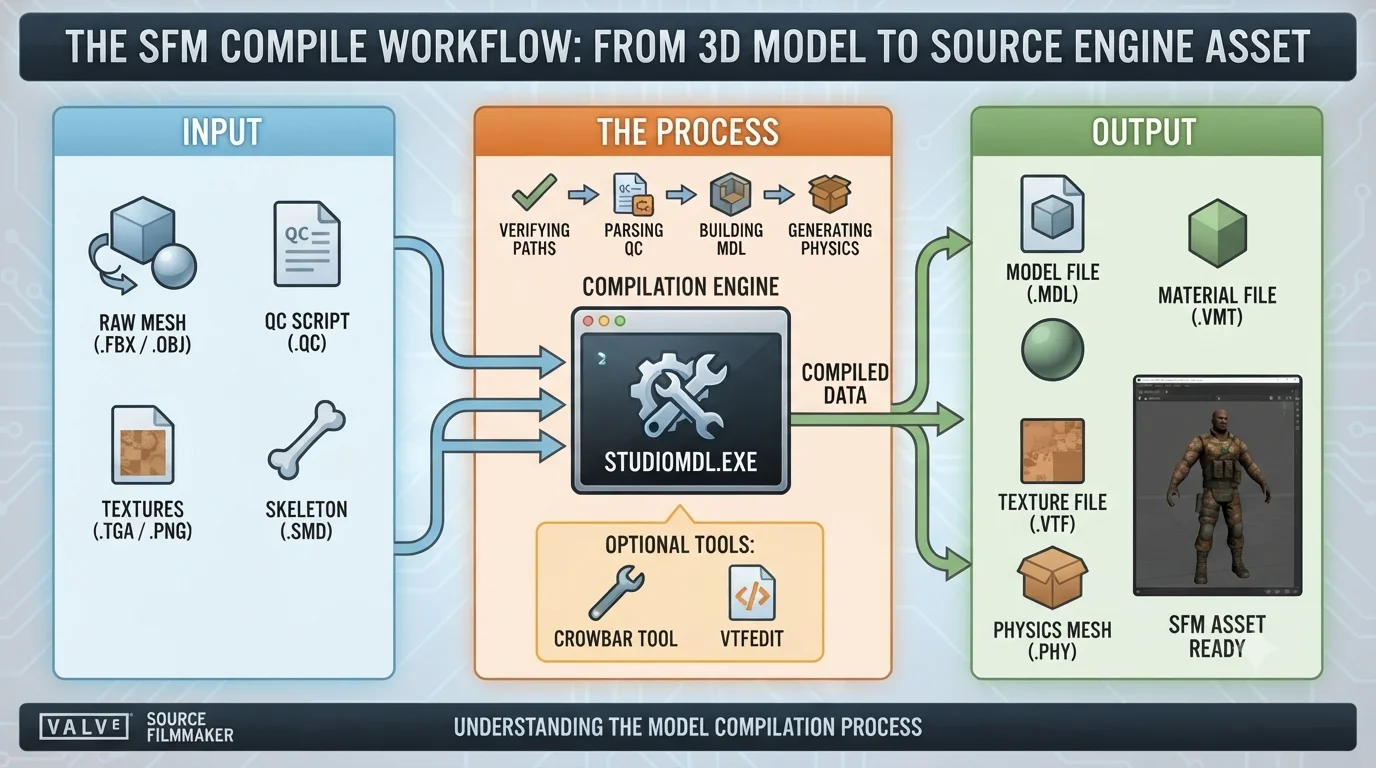
An SFM compile turns your raw assets into files the Source engine can read. When you “compile” a model, the system reads a QC script and outputs a .mdl file along with physics and animation data. Textures compile from PNG or TGA into the compressed .vtf format. Maps compile from Hammer’s .vmf into a playable .bsp. And when you finish an animation, the final video compile—often called a render—encodes your scene into a .mp4 or image sequence.
Every one of these processes shares a common thread: the Source engine’s toolchain. Without a successful SFM compile, you have no usable content. You need to master each type to stop the crashes and deliver polished work.
The Essential Tools for SFM Compilation
You cannot compile anything for SFM without the right utilities. Here is your core toolkit.
- Source SDK (2013 Multiplayer) – The official Valve toolset. It contains studiomdl, vtex, and hammer. Install it through Steam under Library > Tools.
- Crowbar – A community-made model compiler/decompiler that wraps studiomdl with a graphical interface. Far more forgiving than command lines.
- VTFEdit – For compiling single textures. It converts images to .vtf and creates .vmt material definitions.
- GCFScape – Opens Valve’s .vpk archives so you can extract game assets to study or modify.
- Notepad++ – The only text editor you need for writing QC files, VMT scripts, and compile logs.
These five tools handle 95% of all SFM compile jobs. Get them installed first. The official Valve Developer Wiki provides the most current download links and source documentation.
How to Compile a 3D Model for SFM (QC to MDL)
Compiling a custom model for SFM starts with a QC script. This plain text file tells studiomdl where your SMD reference mesh lives, which animations to include, and how to build the physics hull.
$modelname “my_character\my_character.mdl” $body studio “my_character_ref.smd” $cdmaterials “models\my_character\” $sequence idle “idle.smd” fps 30 $collisionmodel “my_character_phys.smd” { $concave }Save your QC file next to your SMDs. Open Crowbar, switch to the “Compile” tab, point it to your QC, and hit compile. Crowbar shows a real-time log. If the SFM compile succeeds, you get a .mdl and related animation files in the output folder. If it fails, the log highlights the exact line causing trouble.
Common pitfalls: mismatched bone names between the reference and animation SMDs, missing $cdmaterials path, and forgetting to generate a physics mesh. Double-check these before you compile. For complex models with over 30 bones, Valve recommends keeping the triangle count under 20,000 for smooth in-SFM playback.
How to Compile Textures for SFM (Image to VTF)
Textures in SFM use the Valve Texture Format (.vtf). You compile a regular image into .vtf using VTFEdit or Valve’s command-line vtex.
Open VTFEdit, click File > Import, choose your PNG or TGA, and adjust these critical settings:
- Set “Texture Type” to “Animated Texture” if the image has frames.
- Enable “Generate Mipmaps” for performance.
- Compression: DXT1 for opaque images, DXT5 for textures with alpha.
- Clamp S and Clamp T should be on for UI elements and decals.
After importing, save the .vtf alongside a matching .vmt material file. A basic VMT looks like:
“VertexLitGeneric” { “$basetexture” “models\my_character\my_character_diffuse” }Place both files in your SFM materials folder. The model’s $cdmaterials path in the QC file must point to the same directory. This SFM compile step trips up beginners because a missing or misnamed VMT makes the model appear solid black or shiny purple checkerboard.
How to Compile a Map for SFM
You build maps in Hammer Editor, then compile the .vmf project into a .bsp that SFM can load. Launch Hammer from the Source SDK tools. Load your map, press F9, and the compile dialog appears.
A standard SFM map compile needs three stages:
- BSP – Builds the basic geometry tree.
- VIS – Calculates what each part of the map can see.
- RAD – Lights the scene with simulated global illumination.
Set HDR to “Full Compile – HDR only” unless you want both LDR and HDR. Check “Run VIS” on Normal, and “Run RAD” on Normal. Hit OK. The compile window shows progress as thousands of visleafs get calculated.
If the SFM compile fails mid-way, open the log with Notepad++ and search for “leak.” A leak means a gap in your skybox allows the void inside. Use Map > Load Pointfile in Hammer to see a red line tracing the leak path. Seal it, then recompile.
For final SFM map compiles, increase the RAD quality to “Extra” and set “-final” in the additional parameters box. This takes much longer but eliminates splotchy shadows and jagged lightmaps.
How to Compile an SFM Project into a Video
When your animation is done, you render—or compile—the final output. SFM offers two paths: image sequence and movie export.
Image sequence (recommended)
File > Render > Image Sequence. Choose a folder, set resolution to 1920×1080 (or custom), frame range to match your shot, and format to TGA or PNG. Set the output profile to “Movie” under the Output Format dropdown. Check “Motion Blur,” set samples to 16 for smooth blur, and choose “Depth of Field” if your camera uses it. Click Render. SFM compiles each frame as a separate image file.
Direct movie export
File > Render > Movie. Select H.264 codec, quality slider to 100, and resolution. This creates an MP4 in one go, but crashes happen more often on large shots. I stick to image sequences, then stitch them in Blender’s Video Sequence Editor or DaVinci Resolve. That extra step gives you far more control and almost never corrupts.
If your SFM compile during render crashes, check your graphics driver version. SFM hates certain recent Nvidia Game Ready drivers. The Valve SFM community on Steam recommends driver version 537.58 as the most stable for 2025.
Typical SFM Compile Errors and Solutions
The log window spits out cryptic messages. Here are the five most common SFM compile errors and their direct fixes.
| Error Message | Cause | Fix |
|---|---|---|
| “ERROR: Unable to find model” | QC references an SMD that does not exist in the folder | Check file names match exactly. SMD paths are relative to the QC location. |
| “Too many bones in model” | Model skeleton exceeds 128 bones | Split the model into separate meshes or reduce bones in your 3D software. |
| “Can’t load texture” | VMT points to a missing or misspelled VTF | Open the VMT and verify $basetexture path matches the actual VTF name. |
| “Memory allocation failed” | Map compile runs out of RAM on large brushwork | Close background apps, increase your system page file, or simplify the map geometry. |
| “Engine Hunk Overflow” | SFM tried to load too many assets at once | Reduce the number of props in your scene or raise the heap size in launch options (-heapsize 2097152). |
Each of these stops your SFM compile dead. Fix them one at a time, then recompile only the stage that failed—don’t redo the whole chain every test.
Optimizing Your SFM Compile Process for Speed
Waiting ten minutes for a test compile kills momentum. Speed up your workflow with these adjustments.
- Use Crowbar’s “Fast Compile” toggle when iterating on model weighting. It skips physics hull generation and cuts compile time in half.
- In Hammer, set VIS to “Fast” during testing. Only use “Normal” for final lighting checks.
- Enable incremental building in the Steam settings for Source SDK. It avoids full recompiles of unchanged data.
- Store all SFM project files on an NVMe SSD. Compiling from a mechanical hard drive triples the time, especially for texture conversion.
- Disable antivirus real-time scanning on your SFM working folders. Security software can intercept every file write, choking the compile pipeline.
By mixing fast test compiles and full final compiles, you get immediate feedback without wasting hours. My own workflow: use Crowbar’s fast compile for model shape checks, then a full SFM compile only when the silhouette and bone placement look right.
SFM Compile vs. Other Source Engine Compiling
You might wonder if compiling for SFM differs from compiling for games like Garry’s Mod or Team Fortress 2. The short answer: the basic engine toolchain is identical. studiomdl, vtex, and vbsp are the same executables. The key difference lies in the runtime constraints.
SFM allows higher-poly models because it renders offline. A game needs models under 10,000 triangles for real-time performance. SFM can handle 40,000 or more, provided you have enough RAM. SFM also supports any shader the Source engine can parse, but it prefers VertexLitGeneric and UnlitGeneric. Reflective materials using $envmap work, but require cubemaps compiled with the map. If your SFM compile produces a model that looks dull, rebuild cubemaps by typing “buildcubemaps” in the SFM console.
The other major difference: SFM does not need model LODs (level of detail). You can skip that section in your QC file entirely. This simplifies the compile process versus game-targeted modding.
What to Do When SFM Compile Fails Repeatedly
When the fixes in the table above don’t solve the problem, follow this diagnostic sequence:
- Check the log again. Search for the first occurrence of “error” or “warning.” Compile logs are verbose, but the root cause almost always appears in the first ten lines after the failure.
- Verify Source SDK cache. Right-click Source SDK Base 2013 Multiplayer in Steam > Properties > Installed Files > Verify integrity. Corrupted tool binaries produce nonsense errors.
- Strip the asset back. Remove all but one material. Delete animations. Compile a skeleton-only version. If that works, add complexity piece by piece until you find the broken part.
- Use command-line studiomdl directly. Crowbar sometimes swallows errors. Open a command prompt in the studiomdl folder and run
studiomdl.exe yourfile.qc. The raw output often reveals more. - Re-export the source SMD from your 3D software. Use Blender’s Source Tools addon or the official SMD plugin for 3ds Max. A single corrupt vertex normal can tank the whole SFM compile.
This methodical approach solves 99% of stubborn compile failures. I’ve recovered models that seemed completely bricked by simply re-exporting the SMD with a different plugin version.
Frequently Asked Questions About SFM Compile
What is an SFM compile?
An SFM compile converts raw project files—models, textures, maps, and animations—into formats the Source Filmmaker engine can load and render. Every asset you see in a finished animation goes through a compile step.
Why does my SFM compile fail with no error message?
The compiler likely ran out of memory or encountered a corrupt file that caused a silent crash. Raise the heap size via the -heapsize launch parameter, close other programs, and try compiling from the command line to see hidden crash logs.
How do I compile a custom model for SFM?
Write a QC file defining the model name, SMD references, materials path, and sequences. Use Crowbar’s Compile tab to run studiomdl on that QC. Ensure all bone counts stay below 128 and the texture paths match your VMT files exactly.
How long does an SFM compile take?
A simple prop model compiles in under ten seconds. A full character with 40 animations might take two minutes. A detailed map compile with final lighting can run anywhere from five to forty minutes, depending on VIS complexity and your CPU cores.
Can I compile SFM assets on a low-end PC?
Yes. Compiling models and textures requires modest hardware—a quad-core CPU and 8GB of RAM suffice. Map compiling with full VIS and RAD benefits from more cores and RAM. If your PC struggles, set Hammer’s VIS to Fast and limit map size.
How do I compile an SFM project into an MP4 faster?
Render to an image sequence first, then encode that sequence into MP4 using a dedicated video tool like FFmpeg or DaVinci Resolve. Direct movie export in SFM is slower and more crash-prone for scenes longer than 30 seconds.